
Support › Guides › Backing up your data
Backing up your data
Your entries and photos are saved on your phone. If your phone is lost, broken or replaced, or you delete the app, anything you haven't backed up is gone for good, and we can't get it back for you. Back up now, before you need it.
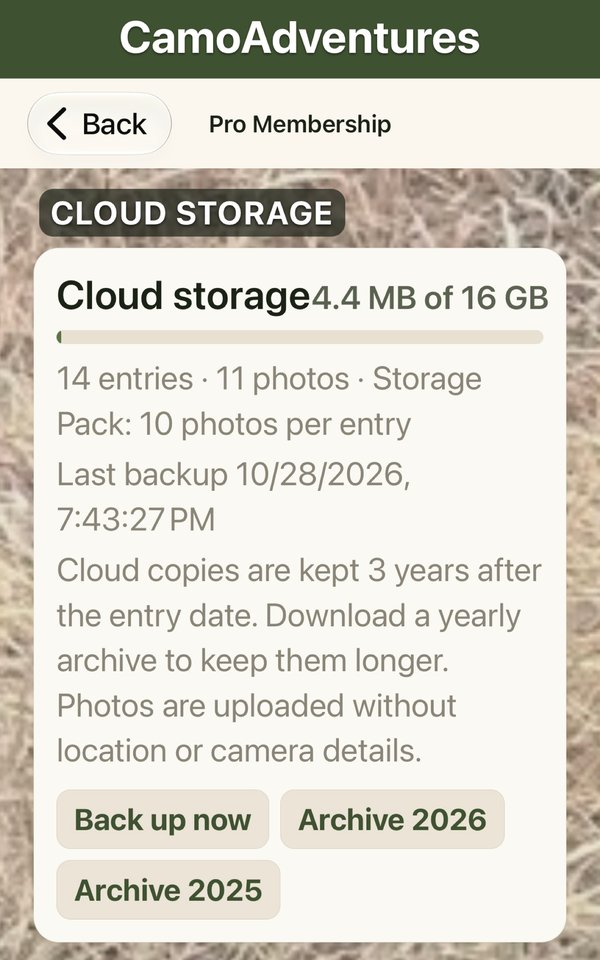
Cloud storage card in Pro Membership
Which backup do I need?
- Free: Your OneHunt Log™, OneCatch Log™ and OneTraveler Log™ entries (up to 20 per log, 1 photo each) are kept only on this phone. Free has no cloud backup, so use Export my logs (Method 2). It saves your entries but not your photos.
- Pro: While you're signed in, each Pro log backs up to the cloud with its photos (Method 1). An export (Method 2) makes a good second copy of your entries.
Method 1: Cloud backup (Pro)
- Sign in: Settings → Account → Sign in (see guide 1, "Getting started").
- Go to Settings → Pro Membership → Cloud storage.
- Tap Back up now. You'll see Backing up… while it works.
- Check the card. It shows Last backup with the date and time, and the storage you've used (for example "412 MB of 6.0 GB").
The app also backs up on its own a few seconds after you save an entry, when you open the app, and every 15 minutes while it's open. Entries made on Free back up once that log has Pro and you're signed in. Sample entries aren't backed up. Before you switch or wipe a phone, tap Back up now.
Method 2: Export my logs (Free and Pro)
- Go to Settings → Backup and tap Export my logs (or tap Save log at the bottom of the screen).
- Save the file (named like camoadventures-backup-20261028.json) somewhere off this phone:
- iPhone: In the share menu, tap Save to Files, choose iCloud Drive, then tap Save. You can also AirDrop or email it to yourself.
- Android only: The app first shows Save your logs. Choose one:
- Share… opens your phone's share menu. Choose Drive for Google Drive, or Gmail to email it to yourself.
- Save to phone lets you pick a folder (it starts in Downloads), then shows Backup saved. This copy is still on the same phone, so also copy it to Drive or a computer.
- Check Files or Drive to make sure the file is there. The app can't tell where a shared file went, so it doesn't show a "saved" message.
- Export again after you add entries. Each file is a snapshot of that moment.
One file covers all three logs, including the buddy names saved on each entry, plus your custom species and the OneHunt Log's list of remembered hunting-buddy names. Your Pro followers and saved groups aren't in the file; they stay with your account. It doesn't include the photos themselves, only which photos each entry had, so imported entries come back without their pictures. On Pro, your photos come back from your cloud backup when you sign in.
Method 3: Yearly archive (Pro)
- Go to Settings → Pro Membership → Cloud storage.
- Tap Archive 2026 for this year or Archive 2025 for last year. (The buttons are always this year and last year. If that year has no cloud entries, you'll see "No cloud entries dated 2025.")
- Save the .zip file from the share menu to Files (iPhone) or Drive (Android).
The archive holds that year's cloud entries (by entry date) from all your Pro logs, with photos. You can open it on a computer, but the app can't import it. Cloud copies are kept 3 years after the entry date, on a rolling basis, so download archives to keep them longer. There’s no button for older years yet. Entries on your phone aren't affected.
Getting your data back on a new phone
- Pro: Install the app, go to Settings and, under Pro, tap Restore purchases (see guide 5, "Restoring purchases"), and sign in with the same email. Keep the app open and online while your entries and photos download.
- From an export file: Go to Settings → Backup → Import logs and choose your .json file. Tap Merge to add it to what's on the phone, or Replace all to replace the phone's entries with the backup. Photos aren't included.
Good to know
- Export spreadsheet makes a CSV report for Excel. It's not a backup and can't be imported.
- Don't count on your phone's own backup. On iPhone, an iCloud backup doesn't include your CamoAdventures entries, so a new iPhone restored from iCloud gets the app back empty. On Android, Google's backup is often skipped once your photos push the app past Google's 25 MB limit, and the app can't confirm that it ran. Use Methods 1–3 instead.
- Photos you take with the app's camera are saved only inside the app, not in your Photos or Gallery app. On Free, they're not backed up anywhere. Photos you pick from your library keep their original in your Photos app.
- Pro includes 2 GB of cloud storage for each Pro log (6 GB with all three). The Storage Pack adds 10 GB and allows up to 10 photos per entry. It needs Pro on at least one log, and the Pro Suite counts (see guide 4, "Upgrading").
- If your cloud storage is full, new photos stay on this phone until you free up space.
- Cloud photos are uploaded without location or camera details.
- Deleting your account also deletes your cloud backup. To delete it, go to Settings, tap your email under Account, then tap Delete account at the bottom, tap Continue, type DELETE and tap Delete my account. It doesn't delete the entries on this phone. Export your logs and download your yearly archives first.
- Still stuck? Email Luke@CamoAdventures.com with your phone model, app version and the email you sign in with.
More guides: Getting started with CamoAdventures · Logging your first entry · Sharing with buddies · Upgrading to Pro, the Pro Suite or the Storage Pack · Restoring purchases · Adding buddies and groups
Still stuck? Email Luke@CamoAdventures.com.