
Restoring purchases
Use this if you bought Pro but the app shows it as locked, or after you reinstall the app or move to a new phone.
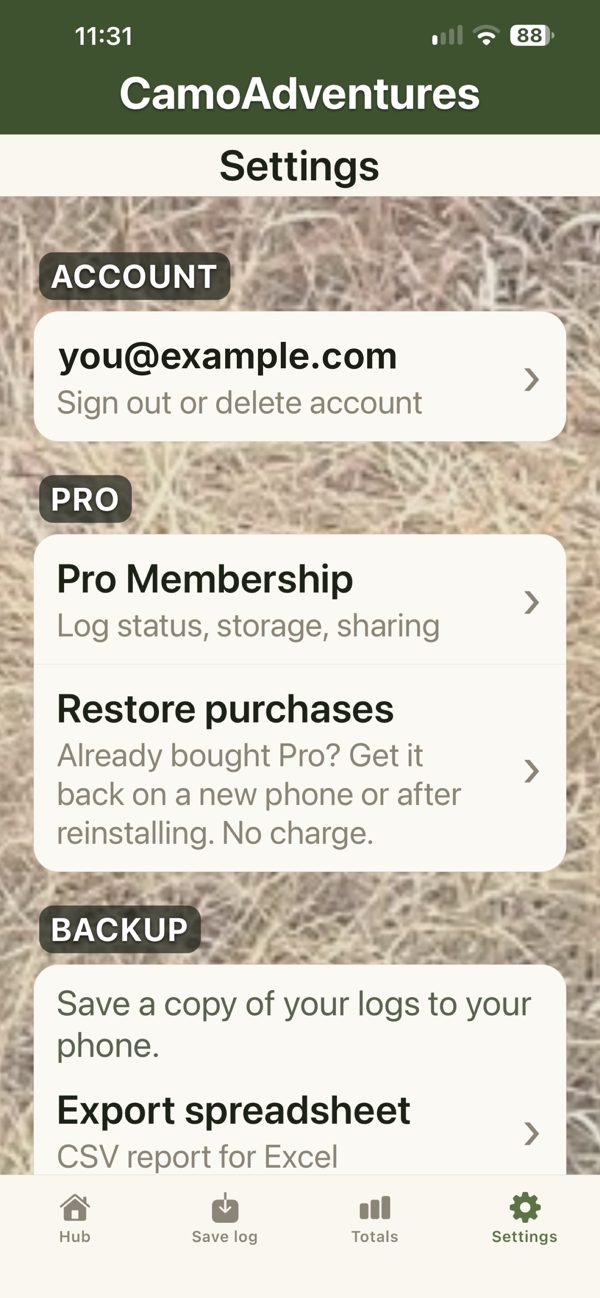
Settings, with Pro Membership and Restore purchases under Pro
- Connect to cell signal or Wi-Fi.
- Check your store account:
- iPhone: Make sure you're signed in to the App Store with the Apple ID you bought with.
- Android: Make sure the Play Store is using the Google account you bought with. If you have more than one, check which one is active.
- Open the app and go to Settings.
- Under Pro, tap Restore purchases. You'll also find Restore purchases in Settings → Pro Membership and on the Get Pro screen.
- Sign in with the same email as before to reconnect your cloud backup (Settings → Account → Sign in).
- Stay on Wi-Fi and give your entries and photos time to download.
Good to know
- "No purchases found for this store account." means your phone is signed in to a different Apple ID or Google account.
- "Couldn't reach the store." means you need a connection. Try again later.
- Apple and Google keep separate purchase records. A purchase made on iPhone won't restore on Android, or the other way around. Email us before you switch.
- Before you wipe an old Pro phone, go to Settings → Pro Membership → Cloud storage and tap Back up now.
- Restoring never charges you again.
- Still stuck? Email Luke@CamoAdventures.com with your phone model, app version and the email you sign in with.
More guides: Backing up your data · Getting started with CamoAdventures · Logging your first entry · Sharing with buddies · Upgrading to Pro, the Pro Suite or the Storage Pack · Adding buddies and groups
Still stuck? Email Luke@CamoAdventures.com.